
Render Offset
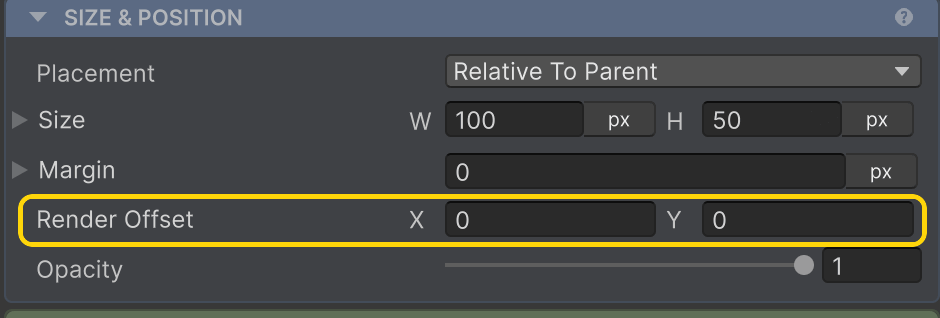
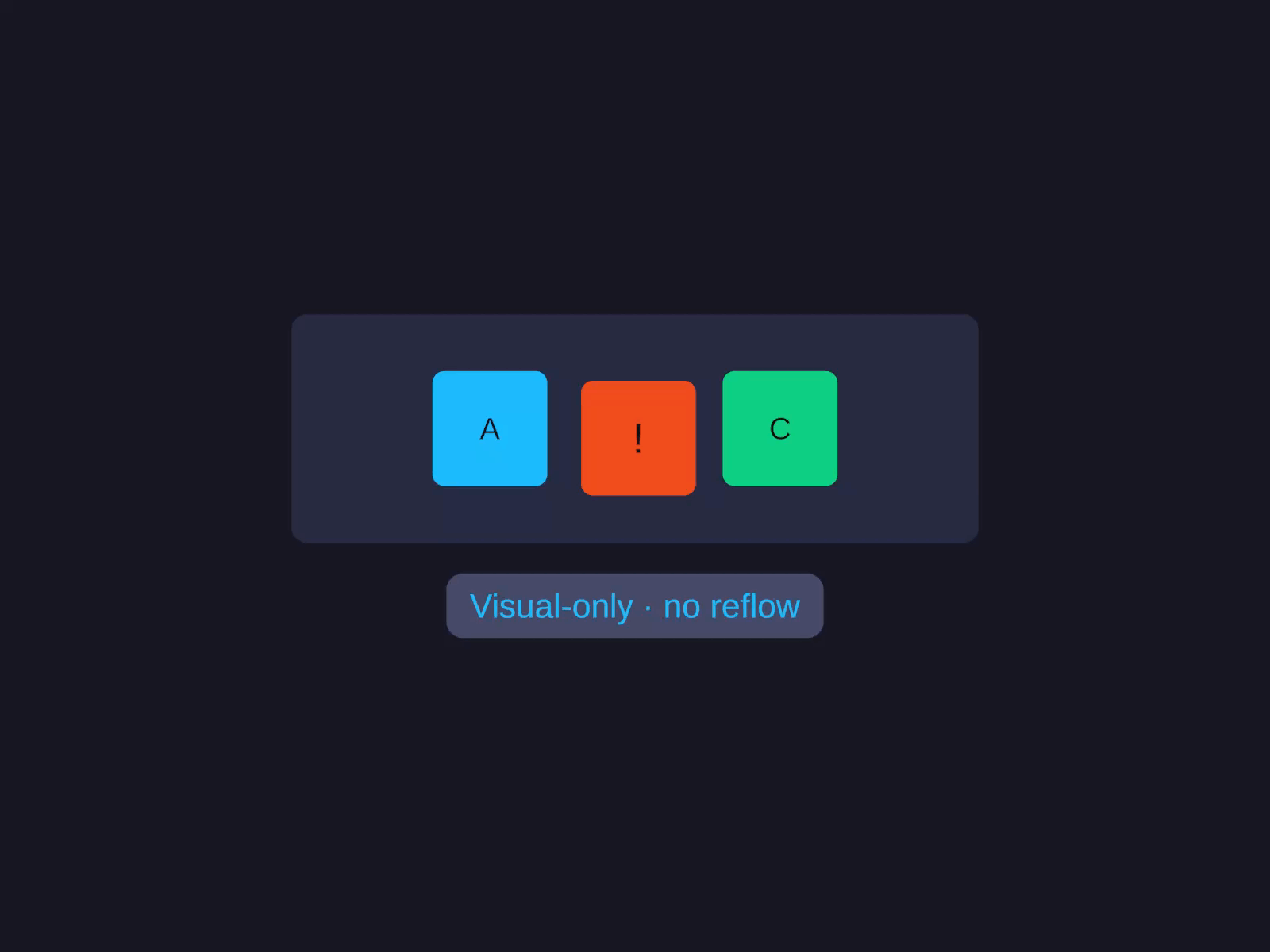
A visual-only translation applied to this element after the layout pass writes its position. Does not affect Hug/Fill sizing, sibling positions, or any layout calculation. Equivalent to CSS transform: translate(x, y). In the Inspector it’s two compact fields (X, Y) just under Margin.
When to use it
- Shake / wobble / bounce animations driven by an Animator or tween - the element jitters visually but every sibling stays put.
- Hover lift - animate
RenderOffset.yfrom0to-4on pointer-enter for a “lifts off the page” feel. - Per-frame procedural nudges - small offsets you don’t want round-tripping through the layout engine.
How it behaves
- Layout-space Y - positive Y is down, matching every other position field on
AutoLayout. The setter handles Unity’s Y-flip for you. - No dirty propagation - writing
RenderOffsetnever invalidates the layout. Cheap to animate at 60 FPS. - Survives reflow - when the layout does rebuild (because some other property changed), the applier re-incorporates the current offset, so an animated value isn’t snapped back to zero.
- Animator-friendly - set up an
AutoLayoutTweenRenderOffsetclip and the transitions system will route the change through your tween provider.
When not to use it
- Don’t use it to position an element relative to its parent - that’s what Margin, Absolute Position, or sibling Gap are for. Render Offset is a delta on top of the resolved layout position, not the position itself.
- Don’t use it to make space for another sibling - siblings don’t see it.
Related
- Tweening - the imperative one-shot animations API; includes
AutoLayoutTweenRenderOffset - Transitions - declarative animations;
TransitionTarget.RenderOffsetroutes value changes through the tween provider - Margin - when you do want siblings to react to the offset