
Sizing
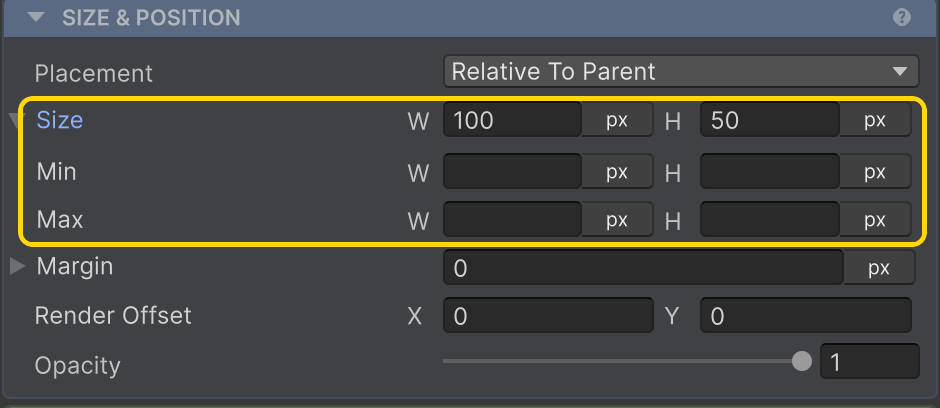
Width and Height are independent - a node can fill horizontally (Width = Fill) while shrinking to its tallest child (Height = Hug). Each axis picks one of six sizing modes, plus a value for some.
Sizing modes
Type the mode name or a unit suffix into the Width/Height field (see Inspector Input):
| Mode | Inspector field | Resolves to |
|---|---|---|
| Pixels | a number, e.g. 120 | The literal pixel value |
| Hug | hug | Sum of children + padding |
| Fill | fill (+ weight) | Share of parent’s free space, by weight |
| Percentage | 50% | A percentage (0–100) of parent size |
| AspectRatio | a ratio, e.g. 1.5x | width × ratio (or height × ratio) |
| TextSize | ts | Intrinsic bounds of the element’s TMP text |
Pixels
Pixels
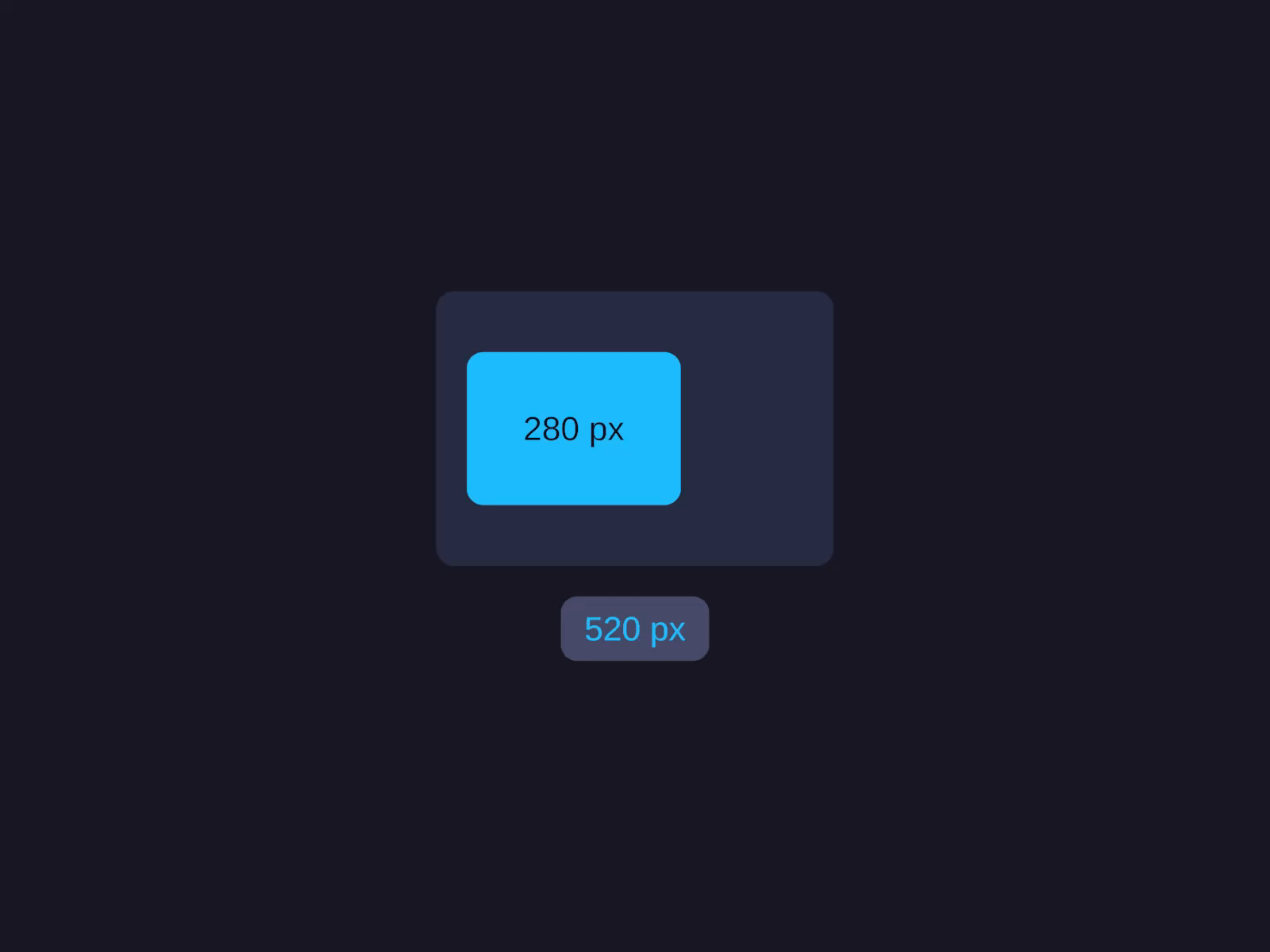
A literal pixel value, unaffected by parent or children - for fixed-size elements like icons, dividers, sized buttons.
layout.Width = UIDimension.Pixels(120f);layout.Height = UIDimension.Pixels(40f);Hug

For text-only leaves, use TextSize instead.
Fill
Fill
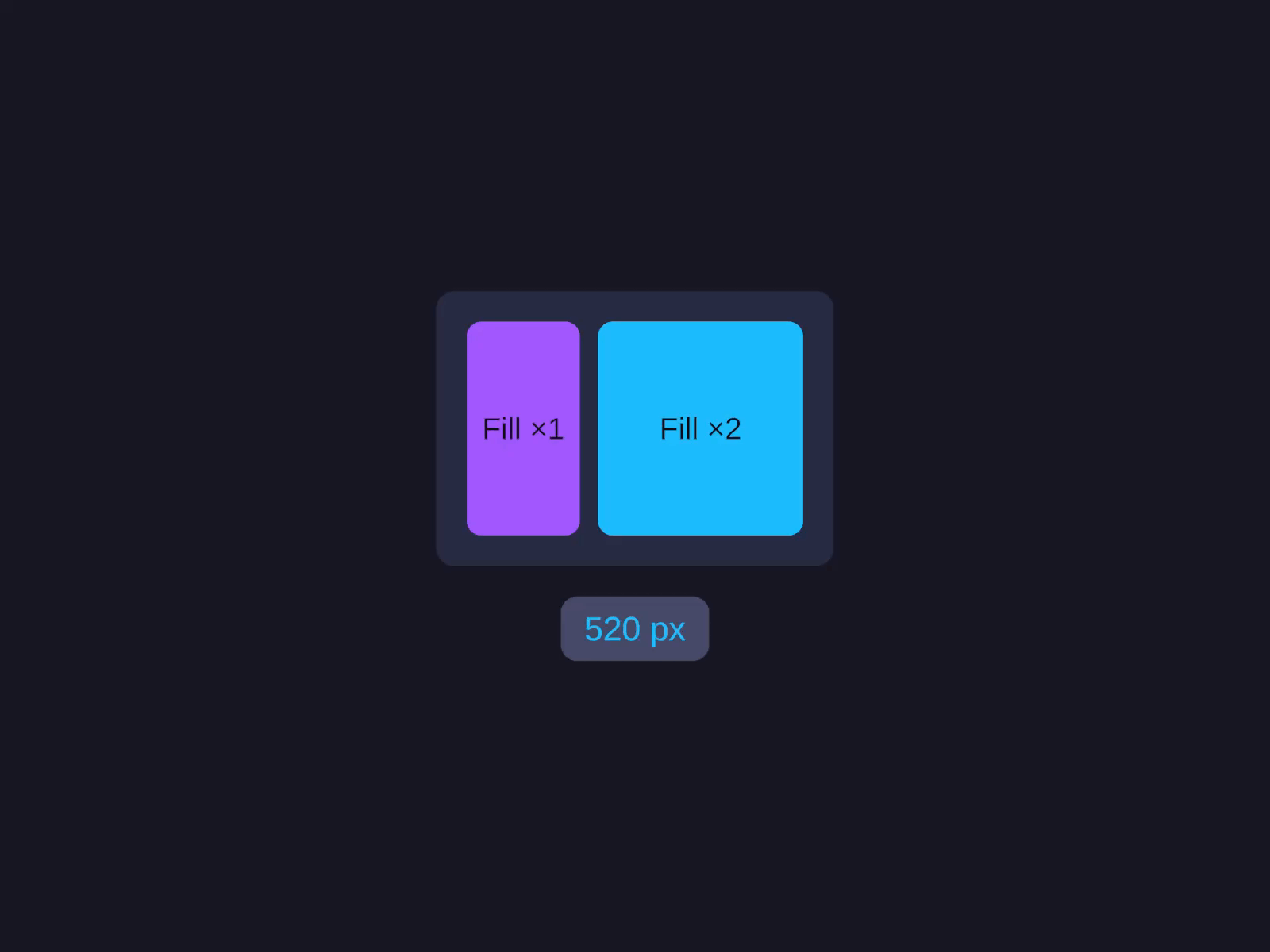
Shares the parent's remaining space with other Fill siblings, proportional to the weight argument (default 1).
Cross-axis: a Width of Fill inside a Column means “fill the column’s full width.”
Percentage
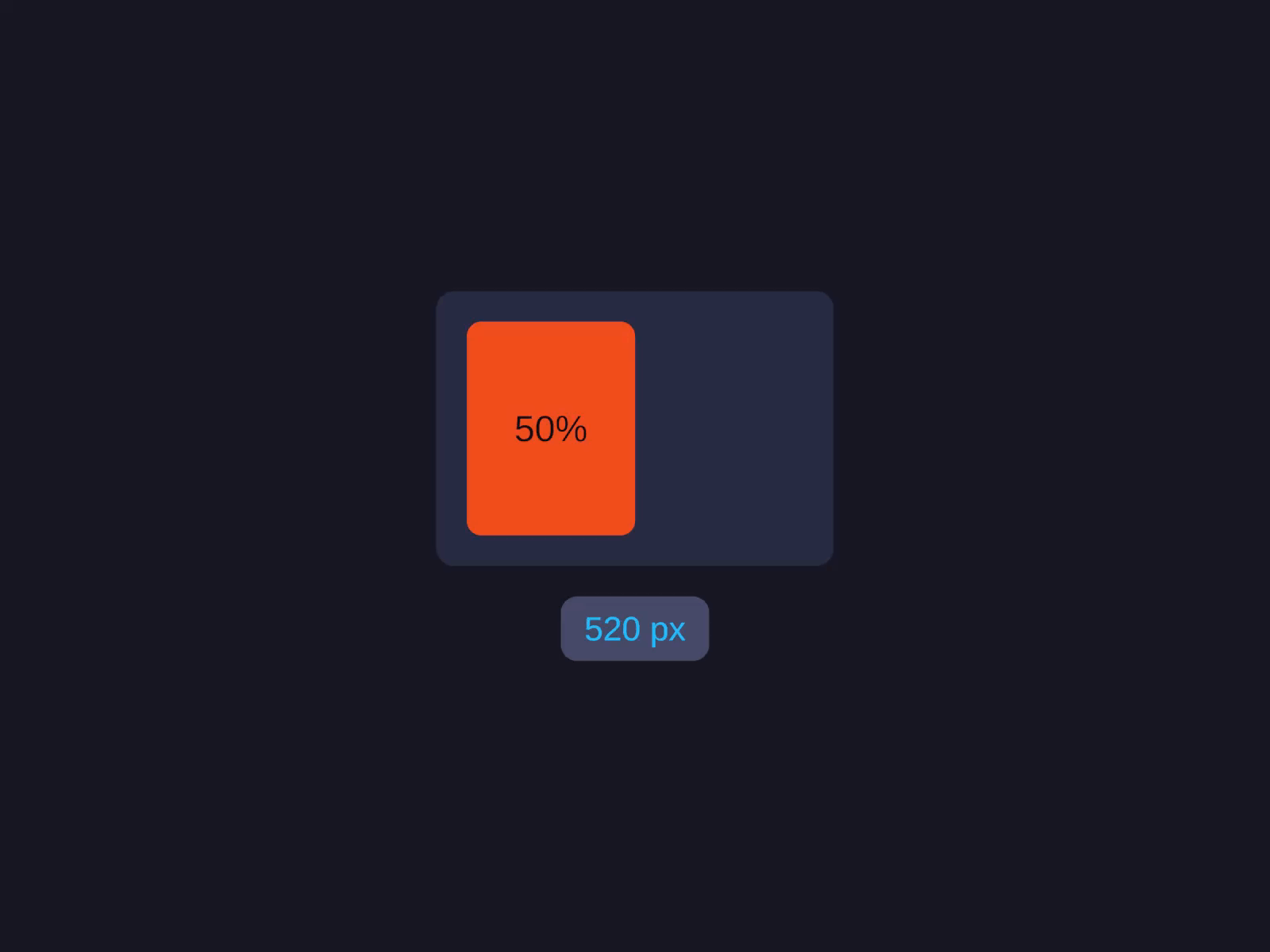
Use Fill when siblings should share leftover space; use Percentage when you want a specific fraction independent of siblings.
AspectRatio
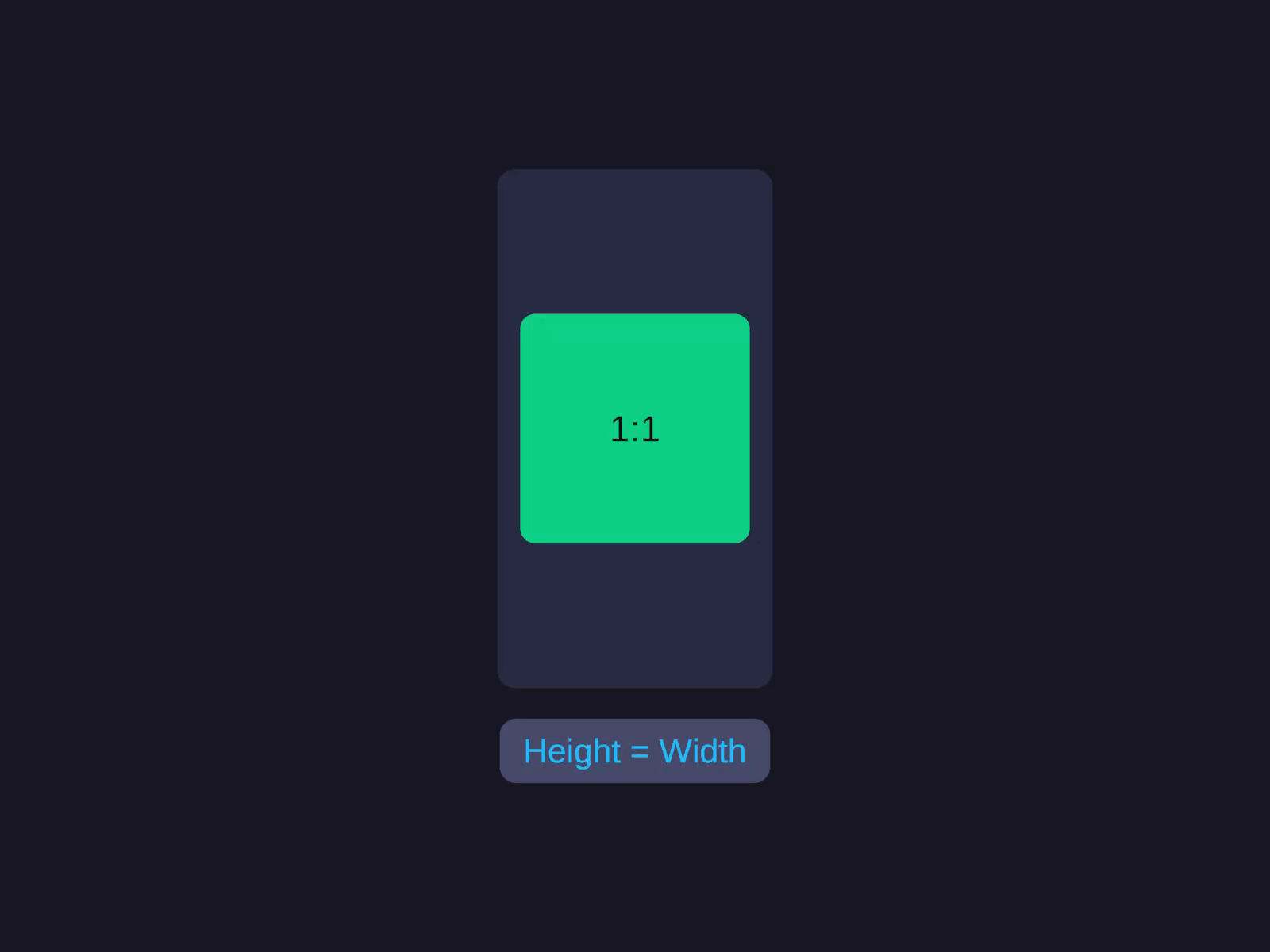
Make sure at least one axis has a definite size (Pixels, Fill, Percentage, or Hug-with-content).
TextSize
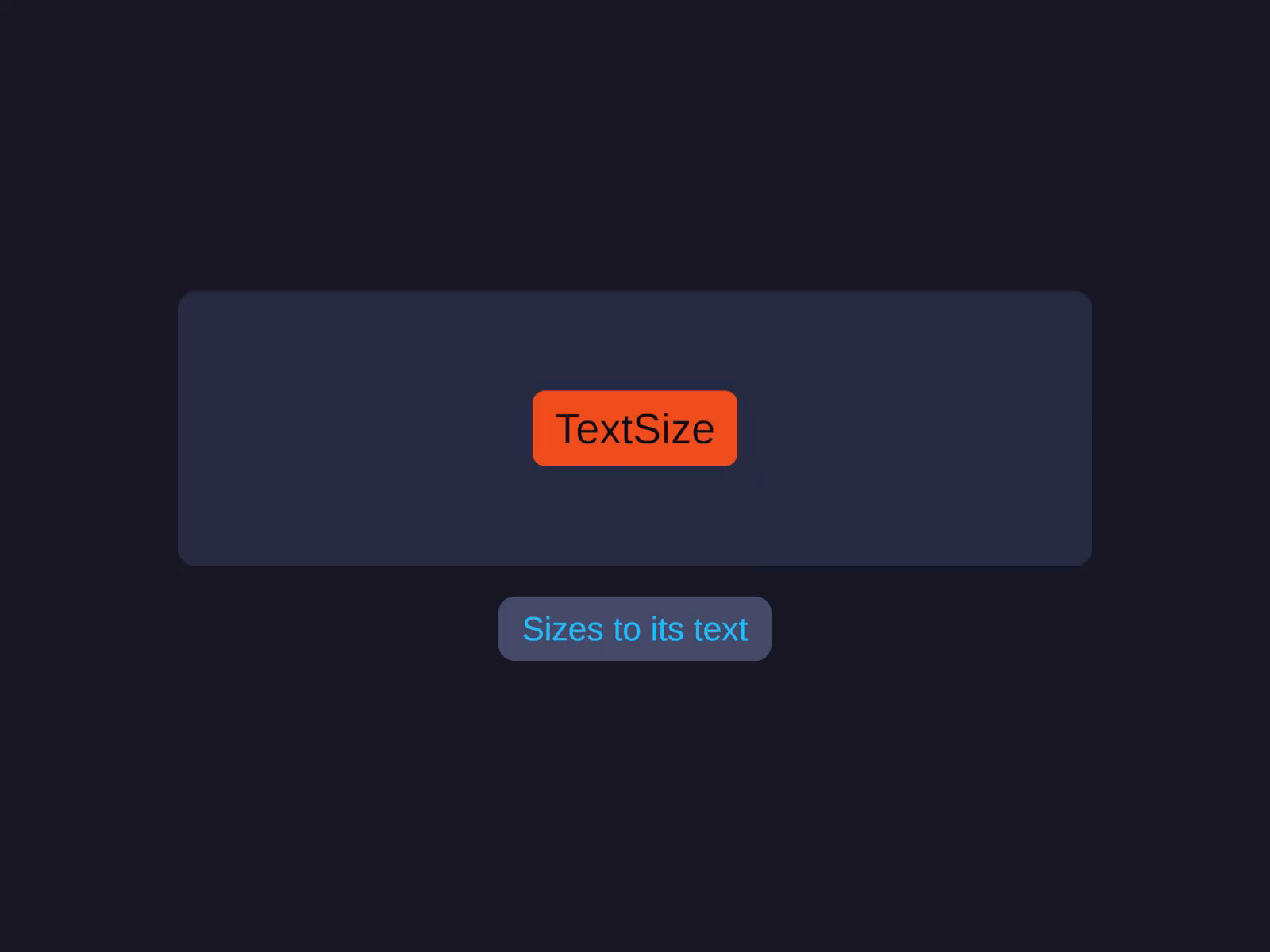
TextSize can apply to both axes or just one - e.g. a full-width label (Width = Fill) that shrinks vertically to its wrapped text (Height = TextSize). If a TextSize element has MaxWidth set, TMP wraps and Height grows to fit.
Cheatsheet
- I know the exact size → Pixels
- This element should grow to fit → Hug (children) or TextSize (text)
- I want it to fill remaining space → Fill
- I want a specific fraction of parent → Percentage
- It must keep a width:height ratio → AspectRatio
- I have a TMP text and want its natural size → TextSize
Min and Max
Every mode can be clamped per-axis:
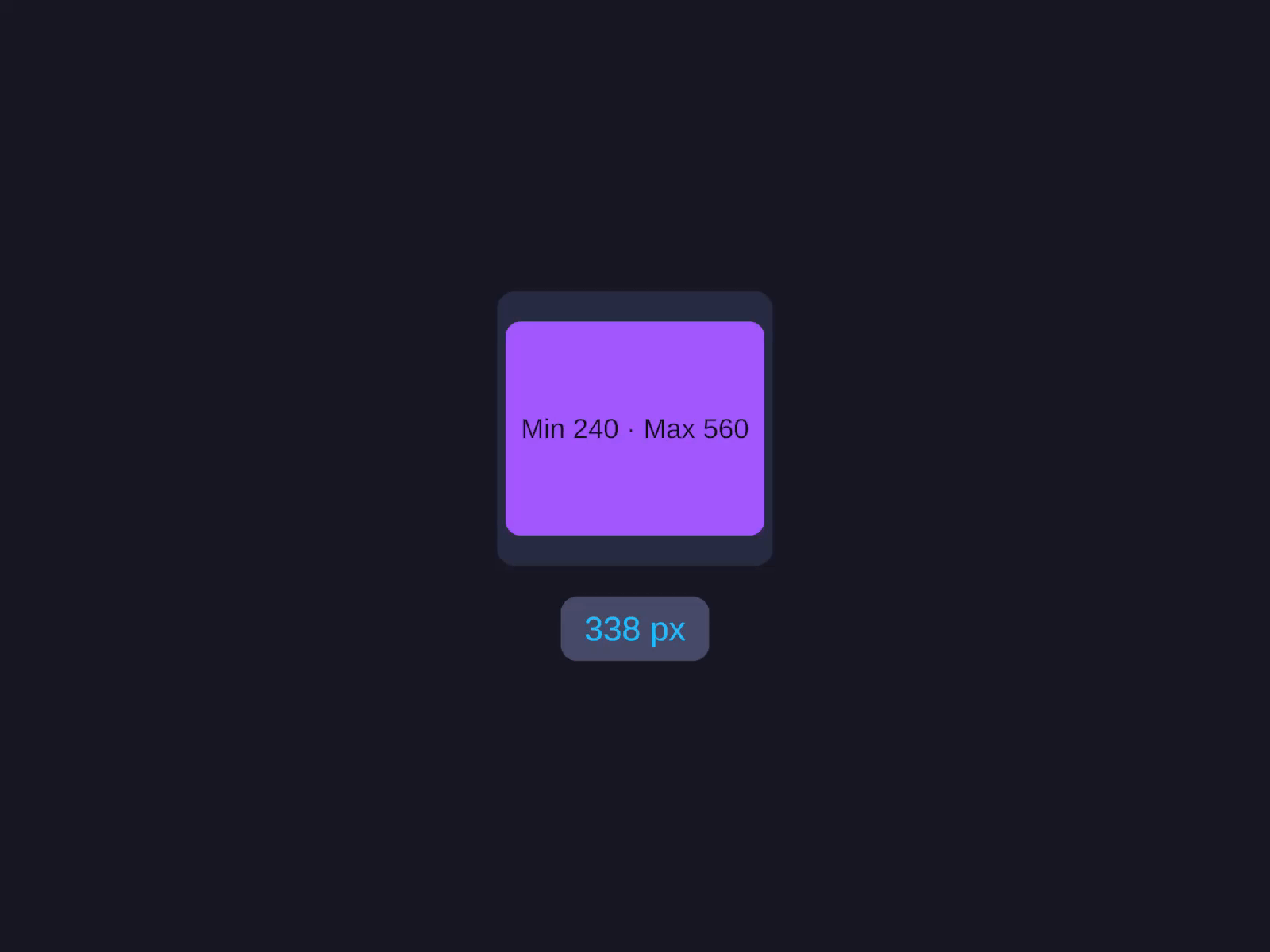
MinWidth / MaxWidth / MinHeight / MaxHeight are pure floats in pixels. Use them to bound a Fill so it doesn’t collapse below or grow above sensible limits, or to give a Hug element a sensible floor.
Inspector input
Width and Height inspector fields parse unit suffixes and math - type 120px, 50%, 1.5x, fill, hug, 100+50px, or (1920/3)px and the field switches modes in one shot. See Inspector Input for the full syntax.
Related
- Inspector Input - type units and math directly into sizing fields
- Absolute - how Width/Height interact with absolute constraints
- Row & Column - how Fill/Hug interact inside Row and Column
- Grid - how track sizing interacts with cell content sizing
- AutoUI - builder reference